Running Apache on a Mac
Date:
[]
Categories:
[Tech]
Tags:
[Mac],
[Apache]
I decided to run a local web server on my Mac to help while I’m learning HTML, CSS and Javascript. I’ve been using VS Code, which has a Live Preview plugin that creates a temporary local server, but I’m switching to BBEdit for reasons I’ll cover in another post. BBEdit has its own live preview feature, and a local server isn’t required, but if one is available BBEdit can make use of it.
After considering a few options, I thought of a service already available on the Mac: Apache.
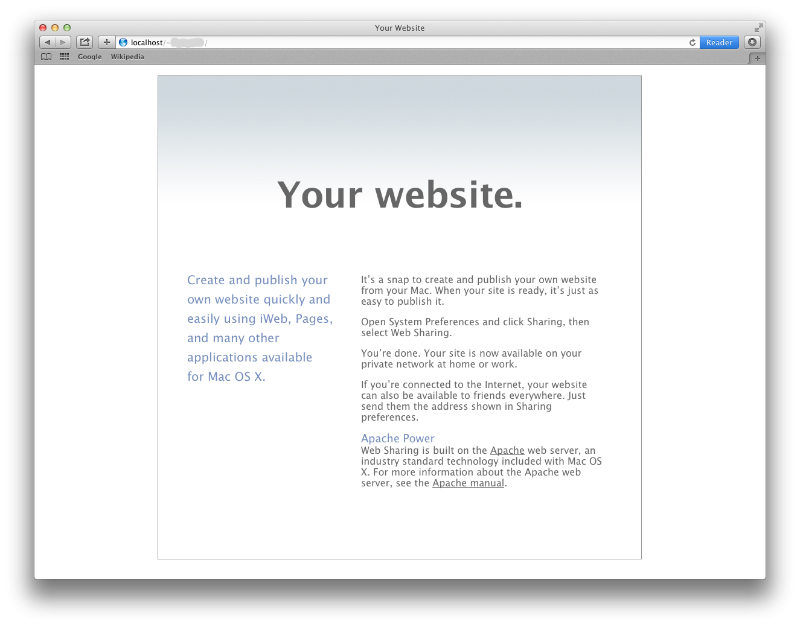
The MacOS still comes with Apache1, although there isn’t much (any?) Apple-specific documentation on configuration and usage. On older Macs it was used to share files with “Web Sharing”. With the OS 10.8 release (Mountain Lion), Web Sharing was dropped as a System Setting option, but all the Apache binaries and configuration files are still in place, and the service can be enabled from the Mac Terminal.
I’m familiar with configuring and operating Apache, but Apple had a standard in mind for Web Sharing, and in this case I’d prefer to follow their model as much as possible, rather than put together a configuration from scratch.
By default, Web Sharing served files from /Library/WebServer/Documents, and could optionally serve files from the user’s home directory under /Users/username/Sites. With both locations enabled, the URLs are:
| URL | Files served from |
|---|---|
| http://localhost | /Library/WebServer/Documents |
| http://localhost/~username | /Users/username/Sites |
That will work for me, so I’m just going to recreate that default setup. (In the above and the steps below, “username” refers to the user’s short account name)
The procedure below worked on the current MacOS 15.6 (Sequoia), and should work on earlier versions. I assume that anyone trying this is familiar with the use of Terminal and how to edit text files.
Procedure:
Start the Apache server
In Terminal, use the command:
sudo apachectl startVerify that it works: open a browser and go to http://localhost/. This should return a page that says “It Works!”.
Create username.conf
(Replace “username” with your short account name in both the file name and the configuration text.)
Create /etc/apache2/users/username.conf. Contents:
<Directory "/Users/username/Sites/">
  AllowOverride None
  Options Indexes MultiViews FollowSymLinks
  Require all granted
</Directory>
Create a Sites folder
Create a folder named “Sites” under your /Users/username folder.
Edit /etc/apache2/httpd.conf
Make a backup of httpd.conf first, then uncomment these lines (if not already uncommented):
LoadModule include_module libexec/apache2/mod_authn_core.so
LoadModule include_module libexec/apache2/mod_authz_host.so
LoadModule include_module libexec/apache2/mod_include.so
LoadModule rewrite_module libexec/apache2/mod_rewrite.so
LoadModule userdir_module libexec/apache2/mod_userdir.so
Include /private/etc/apache2/extra/httpd-userdir.conf
Edit /etc/apache2/extra/httpd-userdir.conf
Make a backup of httpd-userdir.conf first, then uncomment the line:
Include /private/etc/apache2/users/*.confSet home directory permissions
In Terminal, change permissions on your home directory
cd /Users
chmod o+x username
Note that this is a slightly less secure configuration since your home directory is now read-only for everyone. Depending on your circumstances, you may want to take additional steps for security. That’s outside the scope of this article; consult the official Apache documentation for more help.
Test Apache
Put a test file named index.html in Sites, restart Apache, and see if it works
index.html:
<html><body><h1>Sites directory works!</h1></body></html>Restart Apache:
sudo apachectl restartBrowse to http://localhost/~username; you should see the test file.
Starting Apache automatically
I came across two methods for configuring Apache to start up automatically, one using “defaults write” and one using “launchctl load”, but I didn’t need to use either one. Once I started Apache with “sudo apachectl start”, the service stayed running and even started up after a reboot.
I tested this a few times: if Apache is running, then it will start up after a reboot, and if it isn’t running then it won’t start up after a reboot. The “reopen windows when logging back in” setting doesn’t seem to affect this; I have it disabled but Apache still starts back up.
That works for me; I can just start and stop Apache with apachectl as needed.
For reference, the commands are:
defaults write:
sudo defaults write /System/Library/LaunchDaemons/org.apache.httpd Disabled -bool falselaunchctl:
sudo launchctl load -w /System/Library/LaunchDaemons/org.apache.httpd.plistI don’t know what the practical difference is between these two methods, and I’m not planning to use either one.
Alternative configuration
An article from Tech-Cookbook suggests changing the default DocumentRoot to the user’s Sites directory. I tested the Tech-Cookbook method and it works, although I think there are a few minor errors in the article. For example, the article makes use of the Apache userdir module and feature, but I don’t think that’s necessary if you are not going to use a URL in the form http://localhost/~username.
For now I prefer to use the original Web Sharing configuration that keeps the default directory and the per-user directory separate.
References
https://discussions.apple.com/docs/DOC-250007792
https://marc.vos.net/howto/macos-web-server/
https://sausheong.com/how-to-set-up-a-local-web-server-on-macos-15-sequoia-90a70293ce74
-
At least I think it does. My computer is running Sequoia, but it probably shipped with Mojave in 2019, so it's possible that Apache has been carried over through the upgrades. ↩