Uses
Categories:
[Blog]
Tags:
[Computers],
[Hardware],
[Software]
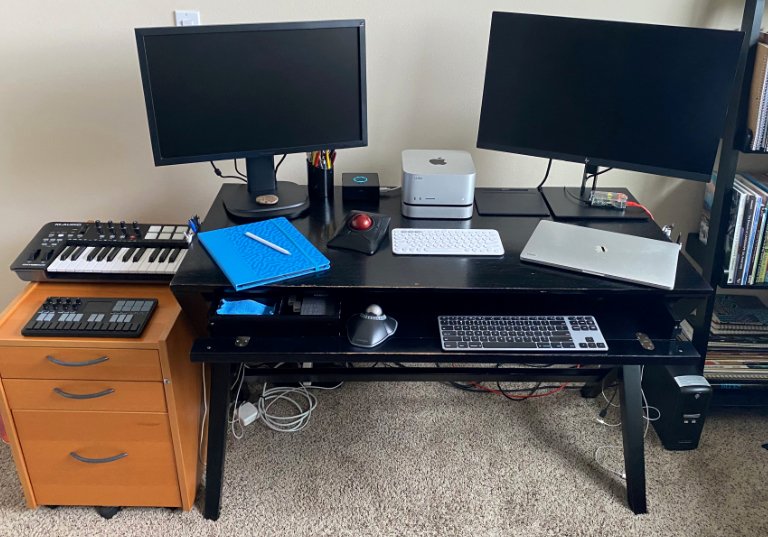
As suggested by 32BitCafe, this is my Uses page: a list of the hardware and software that I use. I posted a previous article about free software, so I won’t repeat that list here.
The links in this list are just for convenience; I don’t have any connection to or affiliation with these companies.
Computers
- Mac Studio, M1 Max, 32 GB, with OWC miniStack external 2TB drive
- MacBook Pro 15”, Intel Core i9, 32 GB
- iPad Pro 13” M4, with a case from Dodocase
- Raspberry Pi 3B
- Raspberry Pi 1B
Input
- Kensington Trackballs
- Expert Mouse Wireless Trackball
- Orbit Trackball USB
- Logitech Marble Mouse USB
- Logitech K380 wireless keyboard
- Matias Aluminum Tenkeyless wired keyboard for Mac
- Wacom Intuos tablet
Monitors
- HP Z27n 27”
- ViewSonic VG2439M 24”
Printer
- Brother HL-L2460 Laser printer
Battery backup
- CyberPower UPS
Desktop apps
- Apple Office Suite (Pages, Numbers, Keynote)
- Affinity Suite (Designer, Photo, Publisher)
- ArtRage Vitae
- Aseprite
- BBEdit
- IA Writer
- Scrivener
- Logic Pro
- Pico-8
- 1Password
iPad apps
iPad music apps and synths
- MultiTrack DAW
- GarageBand
- NLog Synth Pro
- Moog synths:
- Moog Model D
- Moog Model 15
- Animoog Z
- Audiokit synths:
- Digital D1
- Nerd Synth
- King of FM
- VHS Synth
- SNESynth
- Viral Synth
MIDI keyboards
Computers: the MacBook and iPad are my main tools, and I use the Mac Studio for work with software like Logic Pro, Designer or Blender. The Raspberry Pi is an older 3B model, but combined with a (discontinued) case from Element14 it works well as a local server for various purposes. I recently revived an old Raspberry Pi 1B to run pi-hole for ad-blocking.
Trackballs: A trackball is more ergonomic for me than a standard mouse, with less strain on my hand and wrist. Plus, I find graphics software and many other apps easier to navigate with a trackball. There used to be a few different brands to choose from, but now Kensington is one of the only companies still making trackballs.
The Expert Mouse is my favorite. With four buttons and a wheel, it can be configured easily for Blender and other apps, and I find the large size very comfortable to use. The smaller Orbit also works well for me. The Orbit lacks a middle button, but I only need that for Blender. I don’t use the Logitech Marble Mouse as much anymore, but I like the streamlined shape which fits well under my hand.
Keyboards: I use wireless keyboards most of the time, and I like the compact size and multi-device feature of the Logitech K380. But it’s important to have a wired keyboard around in case of pairing problems, or if you need to use a Mac startup option, such as booting into diagnostics or recovery mode. There are plenty of Mac/Windows wired keyboards around, but I wanted something Mac-specific. The Matias Aluminum Tenkeyless keyboard is sturdy and reliable, and I like the company; they were easy to work with the one time I needed support.
Printer: I've owned multifunction color printers in the past, but when my last one died and I started looking for a replacement, I realized that a single-function laser printer was much more practical.
Synths: I’m just an amateur musician, but it’s a lot of fun to plug a MIDI keyboard into an iPad and have a universe of synths to play around with. Who hasn’t wanted to own their own Moog synthesizer?
The Moog Model D is the classic Moog. The Model 15 uses a tangle of cables to build sounds just like in the olden days. Animoog Z is fun visually and it produces very trippy sounds. It will be a while before I understand these apps at a technical level, but there is a lot of enjoyment to be had just by experimenting with the presets.
AudioKit puts their synths on sale for $3 to $5 every once in a while, so I ended up with several of them. They are all similar in design but each one has its own character.
Recommended: Simon Cann has an excellent series of books and videos that teach synthesizer principles on his Noise Sculpture site.